

WooFrames – Ecommerce Wireframe Layout Pack for Divi
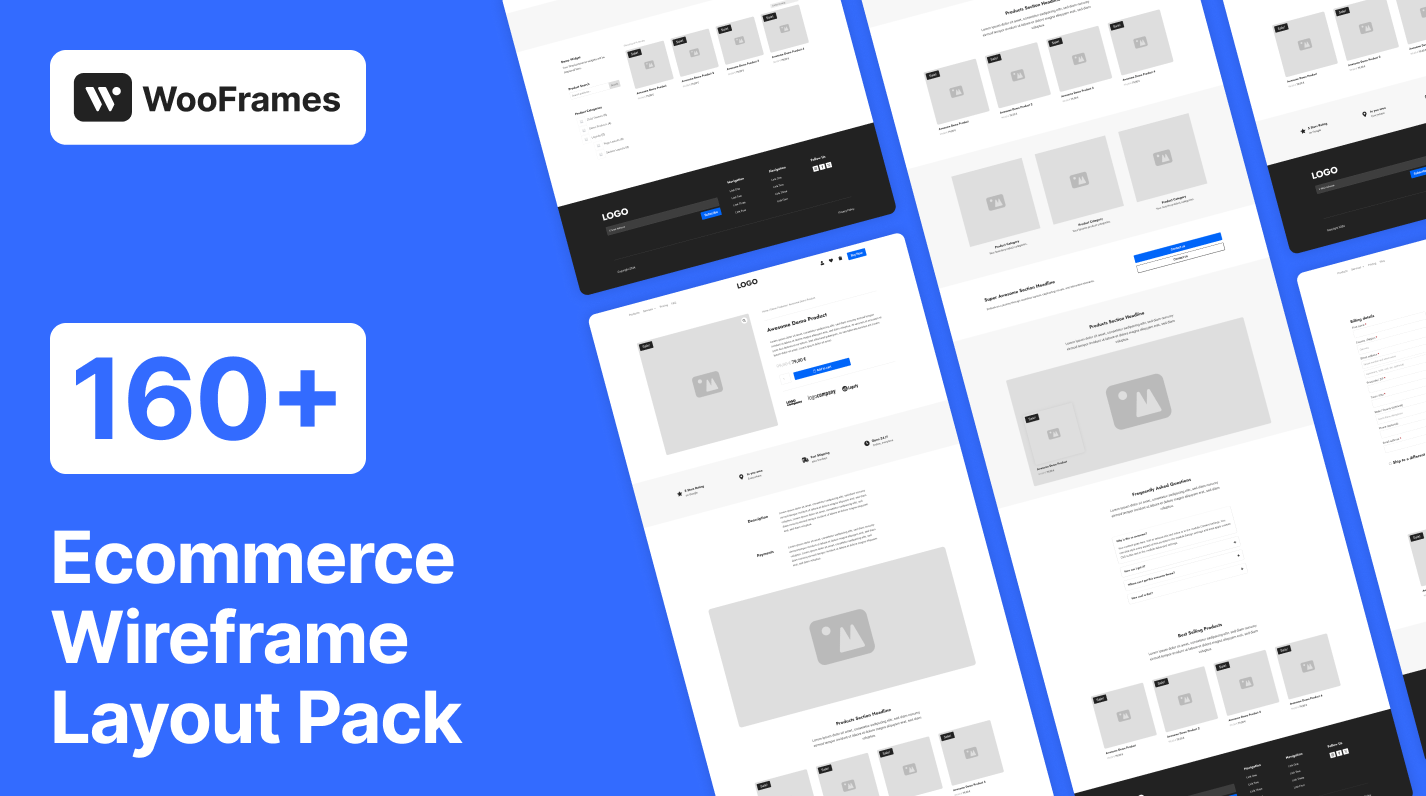
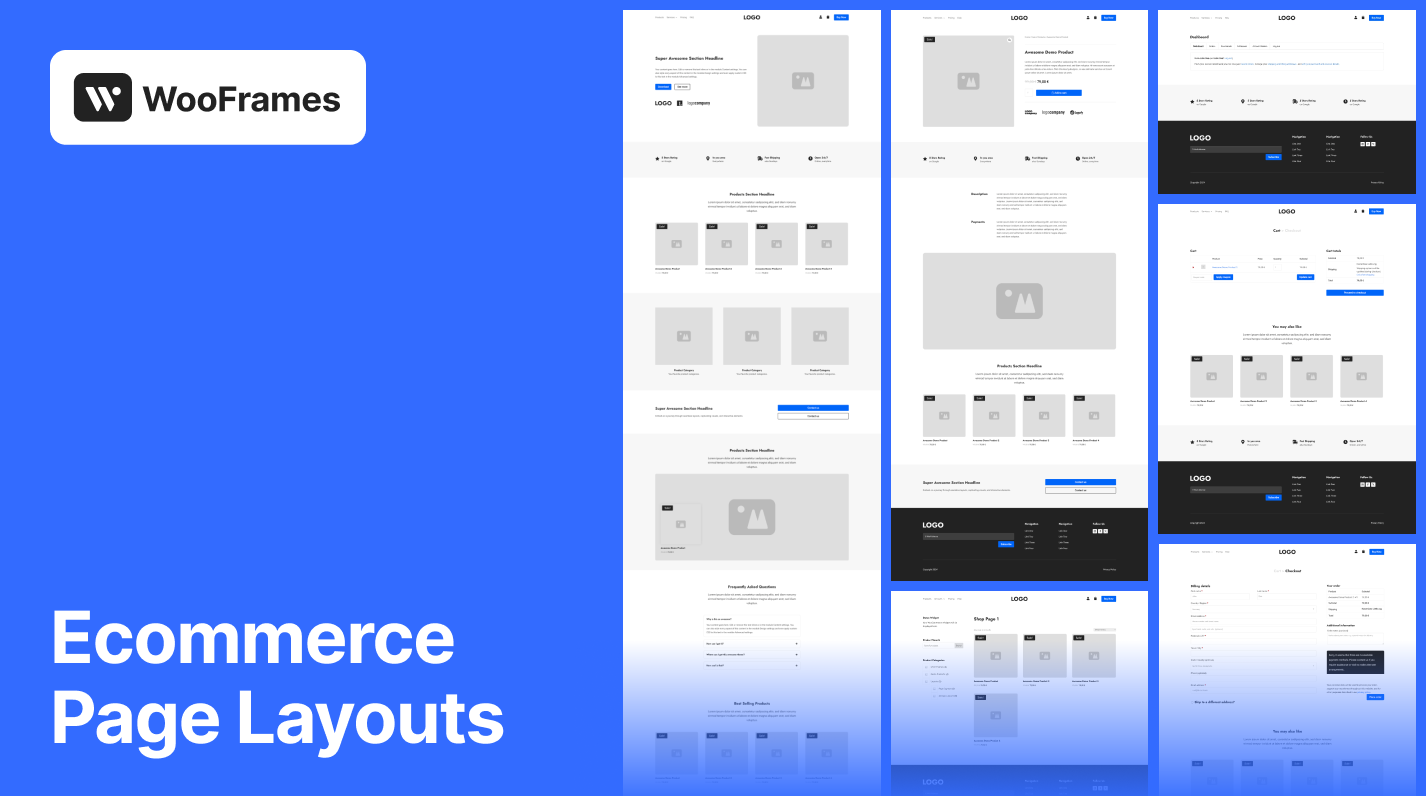
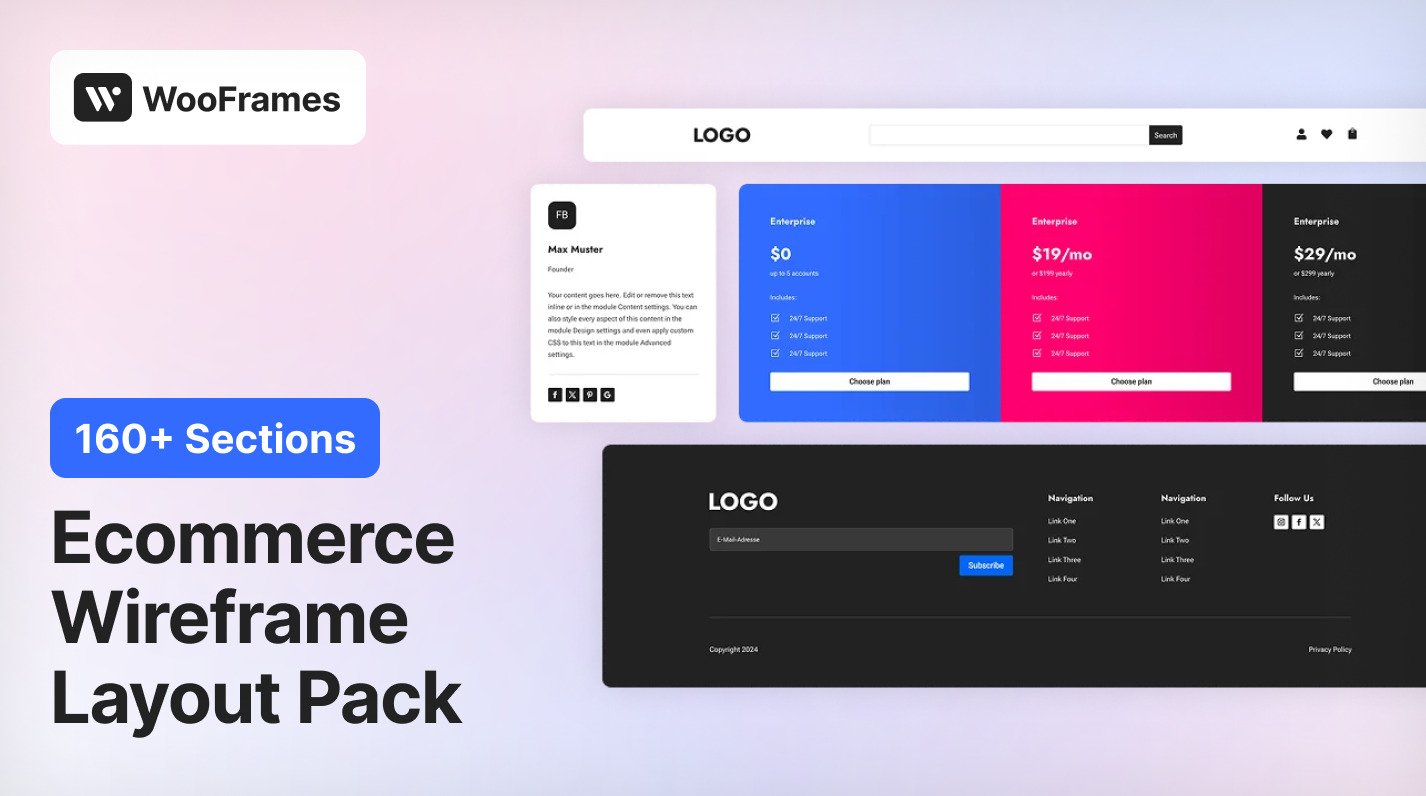
WooFrames is a ready-to-use Divi layout pack featuring 169 layouts across 15 section categories and 6 page categories, crafted specifically for WooCommerce but flexible enough for multipurpose use. All layouts are minimalist—no presets or extra styling—so you can fully tailor them via Divi’s Theme Customizer and your own preset structures.
Original price was: 35,00 €.25,00 €Current price is: 25,00 €.

Description
WooFrames is a simple ready-to-use Divi layout pack featuring 169 layouts across 15 section categories and 6 page categories, crafted specifically for WooCommerce but flexible enough for multipurpose use. All layouts are minimalist—no presets or extra styling—so you can fully tailor them via Divi’s Theme Customizer and your own preset structures.
Key Features
- 169 layouts spanning 15 section categories & 6 page categories
- 163 section layouts & 6 complete page layouts
- Light & Dark versions of every section
- Organized folder structure for quick navigation
- No coding required for implementation
- Easy import into the Divi Library
- Compatible with Divi, WordPress 6.0+, and WooCommerce 7.0+
- Minimal styling and no presets—total control in Divi’s Theme Customizer
- Designed to save time, maintain brand consistency, and streamline development
- WooCommerce-focused, yet multipurpose
Folder Structure
WooFrames/
└─ Layouts/
   ├─ Page Layouts/
   │  ├─ Account Pages/
   │  ├─ Cart Pages/
   │  ├─ Checkout Pages/
   │  ├─ Home Pages/
   │  ├─ Product Pages/
   │  ├─ Shop Pages/
   │  └─ All Pages.json
   └─ Section Layouts/
      ├─ Account/
      ├─ Cart/
      ├─ Checkout/
      ├─ Content/
      ├─ CTA/
      ├─ FAQ/
      ├─ Feature/
      ├─ Footer/
      ├─ Grid/
      ├─ Header/
      ├─ Hero/
      ├─ Pricing/
      ├─ Product/
      ├─ Team/
      ├─ Testimonial/
      ├─ All Light Sections.json
      └─ All Dark Sections.json
Each section folder contains both Light and Dark versions organized in separate subfolders. Layouts can be imported in several ways:
- Individual Layouts: Import specific layouts from each Light or Dark subfolder (e.g.,
Product Section 1.json). - Category Bulk Import: Each category’s Light and Dark folder contains a bulk import file (e.g.,
All Light Account Sections.jsonandAll Dark Account Sections.json). - Complete Collection Import: For importing all section layouts at once, use the comprehensive JSON files in the Section Layouts folder (
All Light Sections.json,All Dark Sections.json). - All Pages Import: The Page Layouts folder contains
All Pages.jsonfor importing all page layouts at once.
Why WooCommerce is Recommended
- Multipurpose foundation: Many layouts are general-purpose and can be used without WooCommerce for standard websites.
- Partial functionality: Even WooCommerce-specific layouts can be repurposed for other content with some customization.
- Enhanced experience with WooCommerce: The layouts are optimized for WooCommerce integration but not dependent on it.
- Only specific layouts require WooCommerce: Product, Cart, Checkout, and Account sections are designed for WooCommerce functionality.
- Standalone sections: Hero, CTA, Team, Feature, Footer, Header, FAQ, Pricing, and other layouts work perfectly without WooCommerce.
You can start using most layouts immediately and add WooCommerce later if you decide to incorporate e-commerce features into your website.
Getting Started
1. Installing WooCommerce
- In your WordPress dashboard, navigate to Plugins → Add New.
- Search for WooCommerce, click Install Now, then Activate.
- Follow the WooCommerce setup wizard to configure your store basics.
2. Importing Layouts into the Divi Library
- Go to Divi → Divi Library.
- Click Import & Export at the top.
- Choose Import, select your JSON file (either individual layout or bulk import JSON), and click Import Divi Builder Layout.
- Repeat for both light and dark JSONs as needed.
Tip: For category-specific bulk imports, use files like
All Light Account Sections.jsonorAll Dark Account Sections.jsonlocated in each category’s Light/Dark subfolder.
3. Creating Headers with the Divi Theme Builder
For optimal user experience across all devices, consider using two different header sections in your header—one for desktop and one for mobile. While all header layouts work on any device, some layouts are better suited for desktop viewing (with expanded menus and more content), while others work better on mobile (with simplified navigation and larger touch targets). Using device-specific headers ensures your site looks professional and functions well regardless of how visitors access it.
- Open Divi → Theme Builder.
- Click either Add Global Header (for site-wide headers) or create a conditional header for specific pages.
- In the header editor, add two header sections if needed:
- First, click Add From Library and select a header that works well on desktop.
- Then, click Add From Library again and select a different header that looks better on mobile.
- Configure each header section’s visibility:
- For the desktop header section, go to Settings → Advanced → Visibility and disable on Phone & Tablet.
- For the mobile header section, go to Settings → Advanced → Visibility and disable on Desktop.
4. Customizing Default Theme Settings
Use the Theme Customizer (Divi → Theme Customizer) to set your global styling (e.g. Button-Stylings, Typography, Layout Stylings, etc.)
All WooFrames layouts respect these default styles—no extra overrides—so your brand identity flows through every wireframe.
5. SEO & Headings
- There are no H1 headings embedded in any layout (to avoid conflicts).
- You must add your own H1 on each page to maintain proper SEO hierarchy.
Why WooFrames?
- Blank-canvas approach: No needless presets or styling to strip out.
- Time-saving: Start from wireframes, not blank pages.
- Brand consistency: Centralized control via Customizer.
- WooCommerce ready: Designed for every stage of the shopping journey.
Page Layout Categories
The Page Layouts folder contains complete page templates ready for immediate use:
- Account Pages – User dashboard, profile and login pages
- Cart Pages – Shopping cart designs
- Checkout Pages – Streamlined checkout process
- Home Pages – Landing page designs for your store
- Product Pages – Individual product displays
- Shop Pages – Product catalog layouts
Section Layout Categories
The Section Layouts folder contains individual sections to build custom pages:
- Account – User account areas, dashboards, and profiles
- Cart – Shopping cart designs for better UX
- Checkout – Streamlined checkout process templates
- Content – Versatile content layouts for any page
- CTA – Call-to-action sections designed to convert
- FAQ – Answer common questions effectively
- Feature – Highlight product/service features
- Footer – Site footers with various configurations
- Grid – Flexible grid layouts for various content
- Header – Navigation and branding sections
- Hero – Eye-catching hero sections for landing pages
- Pricing – Showcase pricing with conversion-focused designs
- Product – Showcase products with conversion-focused layouts
- Team – Showcase team members professionally
- Testimonial – Display customer testimonials and reviews
Best Practices
For optimal results with WooFrames:
- Plan first: Map out your site structure before selecting layouts.
- Maintain consistency: Stick with layouts from the same style family.
- Mobile-first: Always check how your designs look on mobile devices.
- Customize efficiently: Use Divi’s global settings to make site-wide changes.
Support & Resources
- Support: support@divi4.divibar.com
With WooFrames, you get a lightning-fast foundation for your WooCommerce site without the bloat—just pure wireframes, ready to customize. Happy building!
© 2023 Divibar. All rights reserved.